
External links in the EVERYWHERE Hub, also known as Team Overwatch, allow you to share a selected Display Group with people outside of your Hub environment. This is helpful when a customer, partner, dispatcher, or operations lead needs temporary visibility into a team’s location without changing Hub folder structure or user permissions. This article walks through how to create an external link, name it, set an expiration date or allow ongoing access, and share the link through your preferred channel.
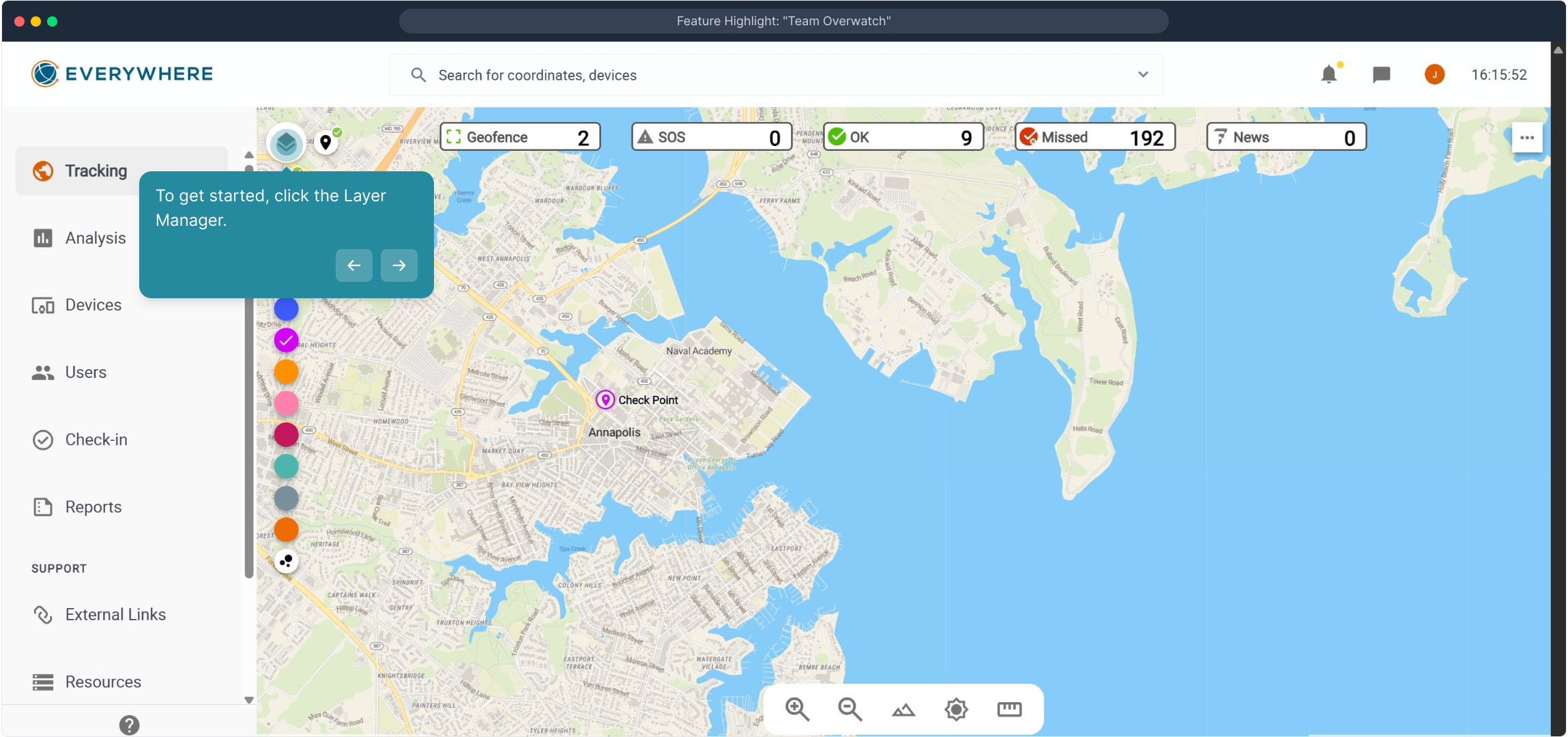
1. To get started, click the Layer Manager.
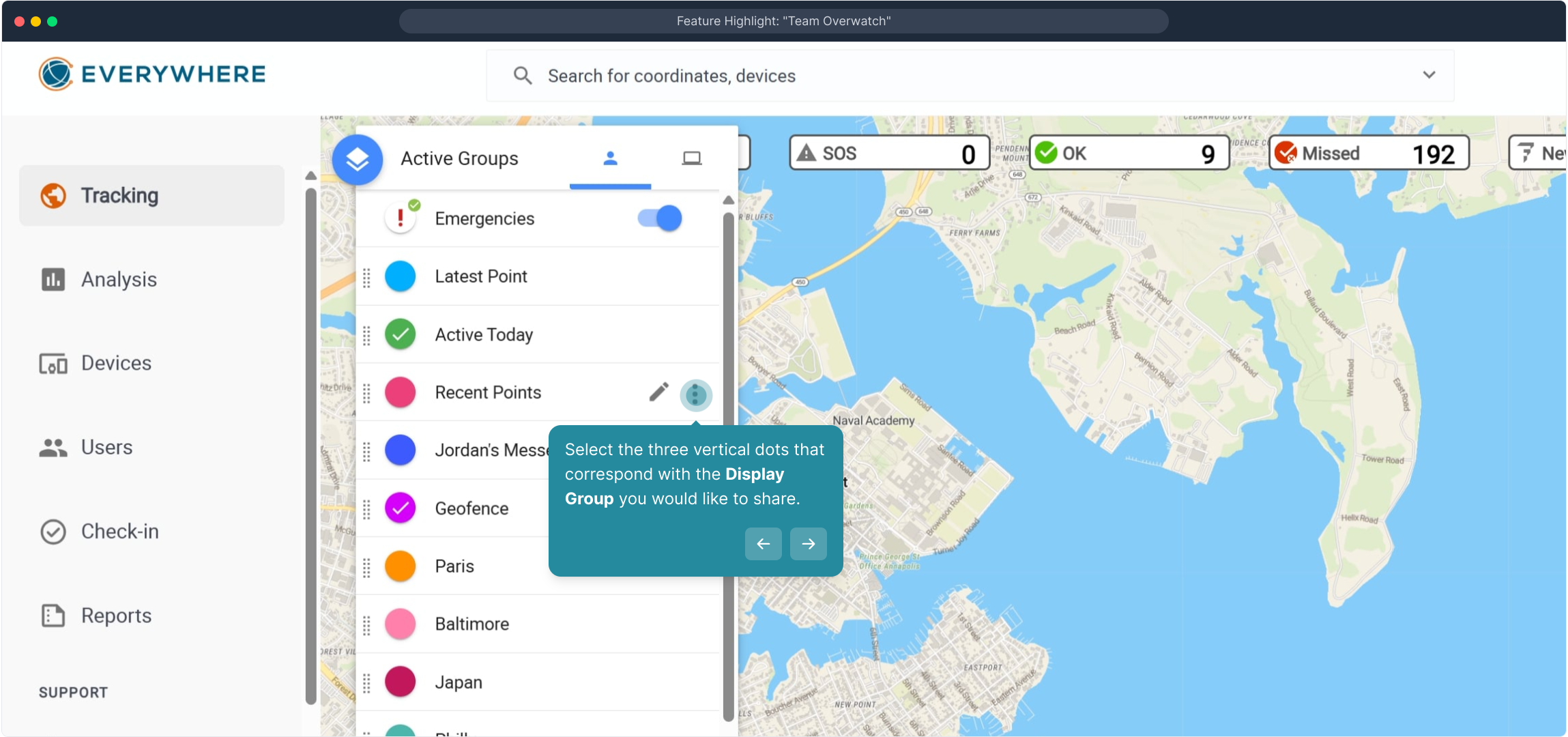
3. Select the three vertical dots that correspond with the Display Group you would like to share
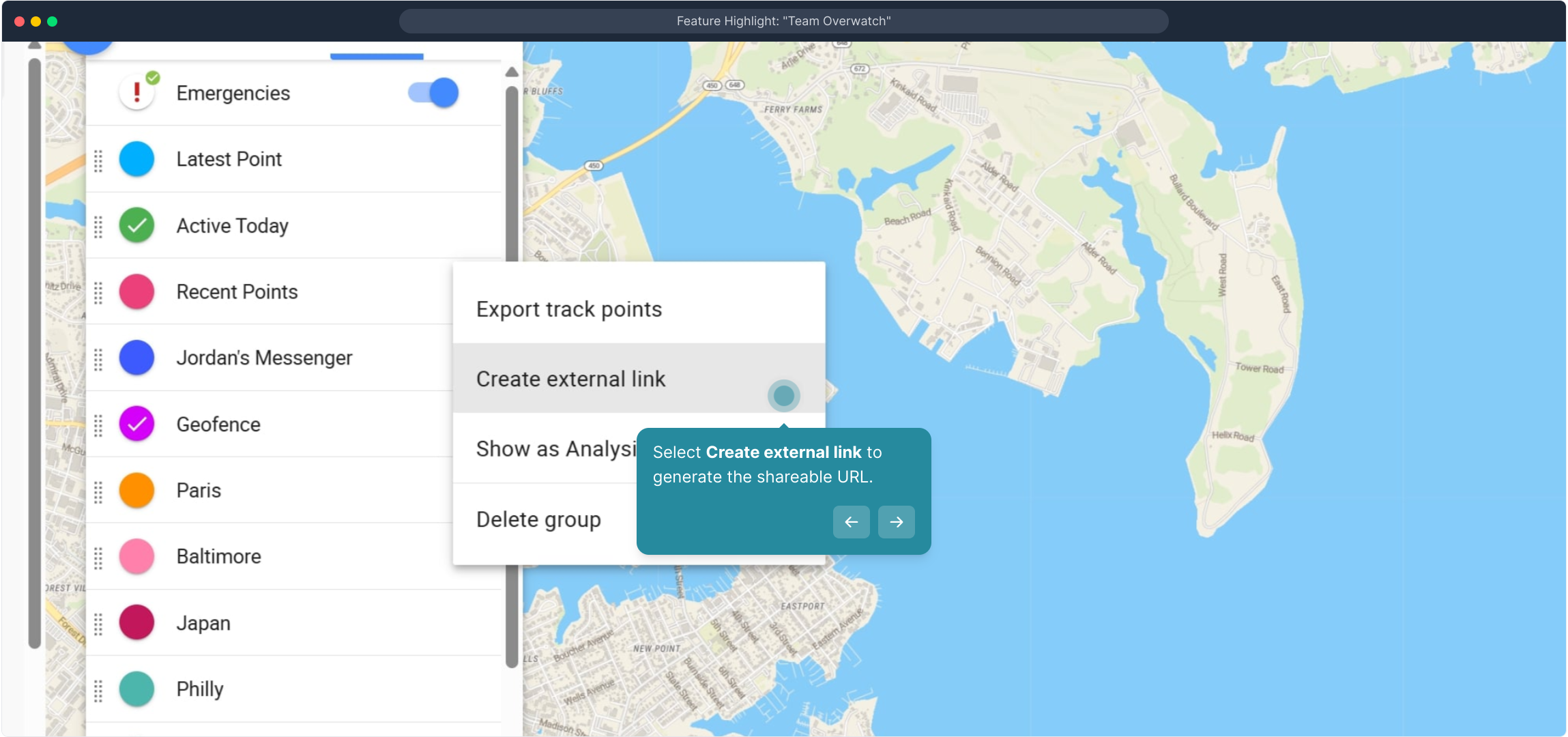
4. Select Create external link to generate the shareable URL.
5. Next up, enter a name for the external link in the text field.
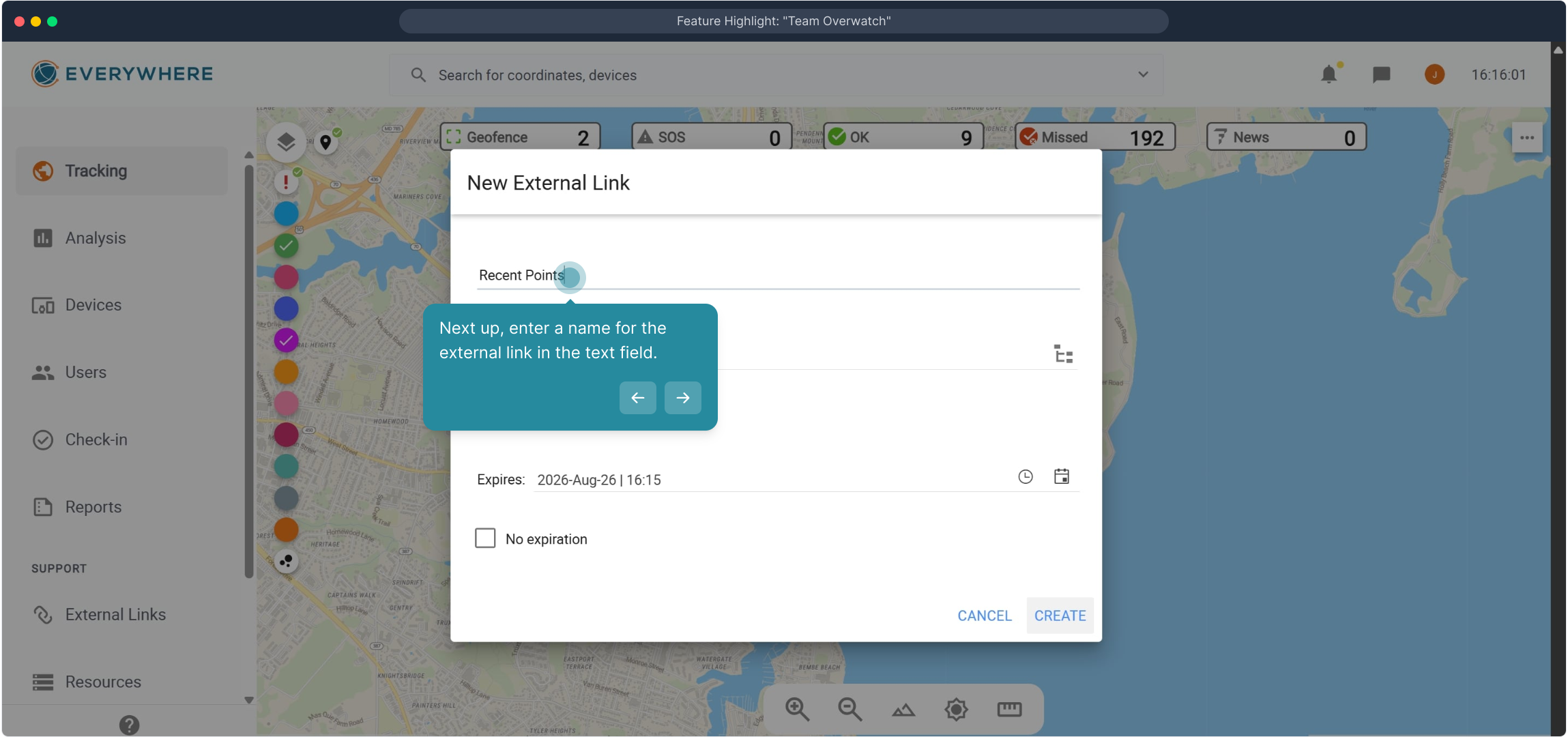
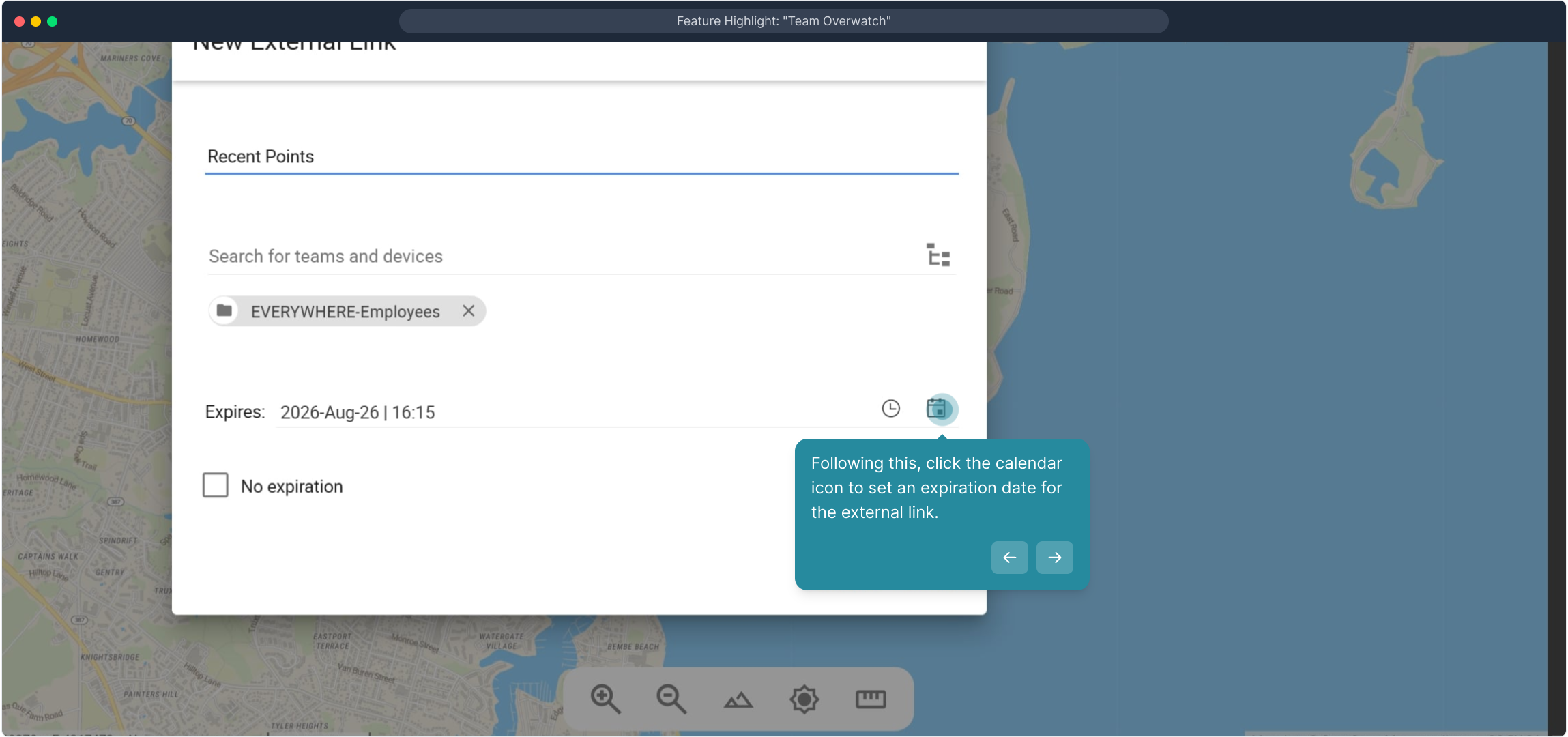
6. Following this, click the calendar icon to set an expiration date for the external link.
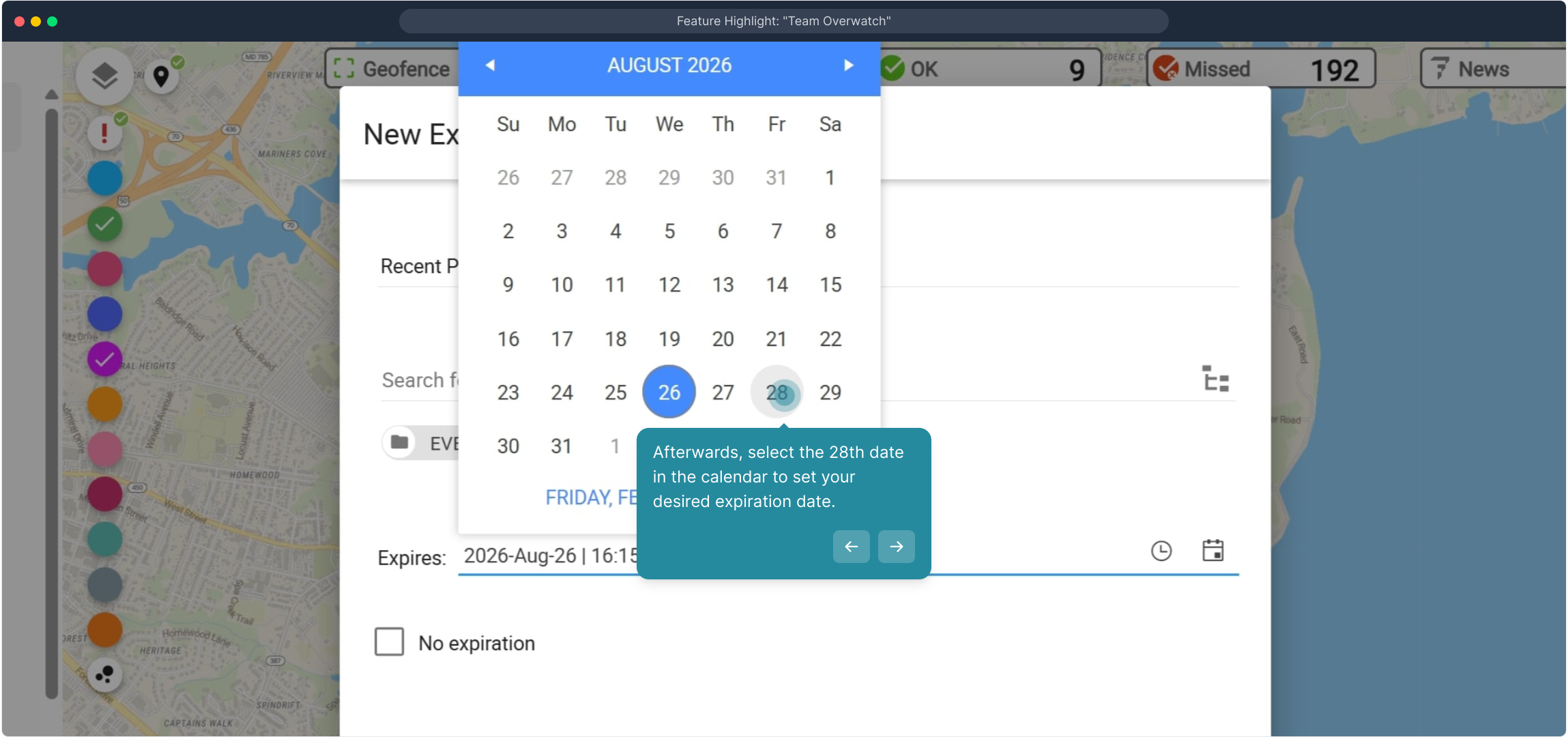
7. Afterwards, select your desired expiration date.
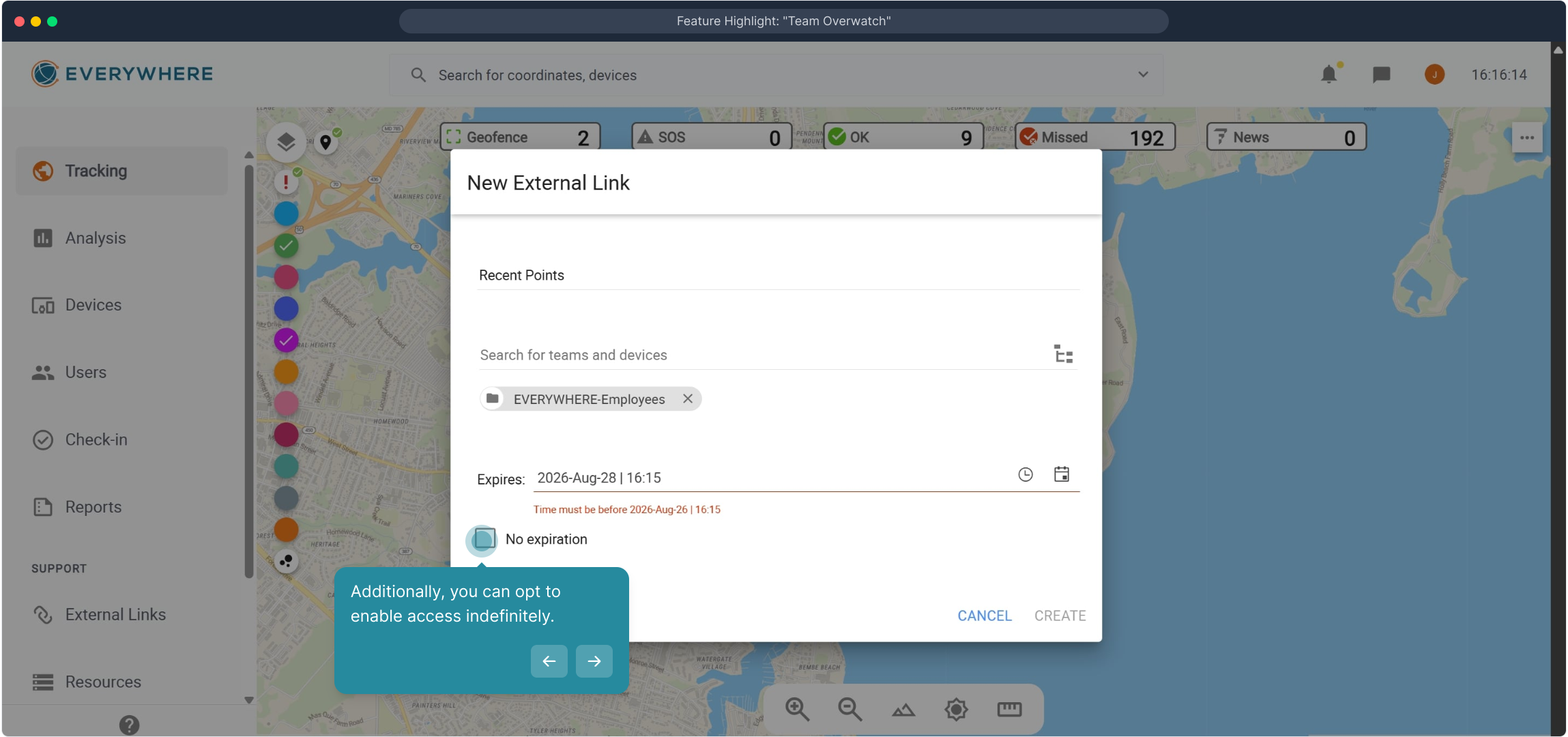
8. Additionally, you can opt to enable access indefinitely.
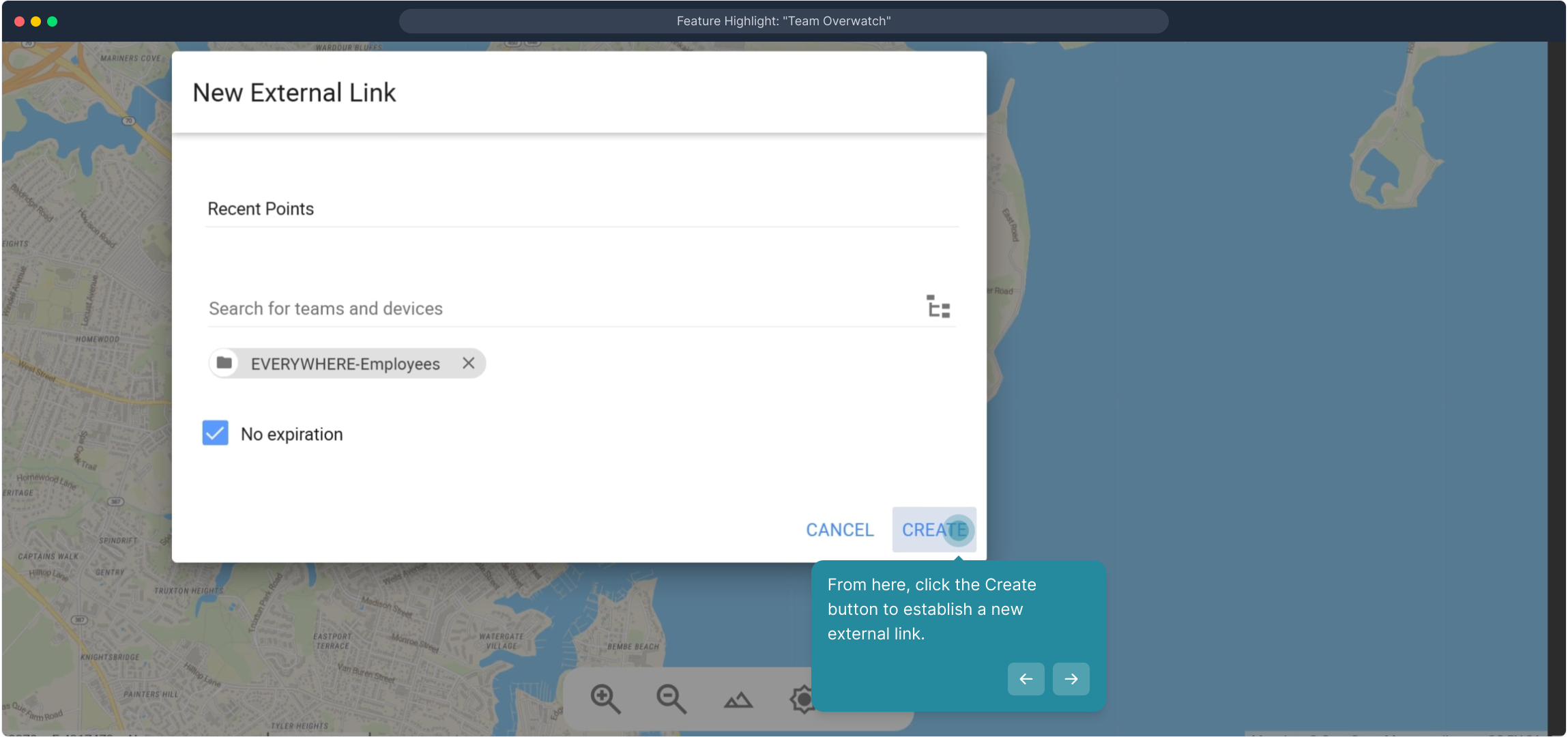
9. From here, click the Create button to establish a new external link.
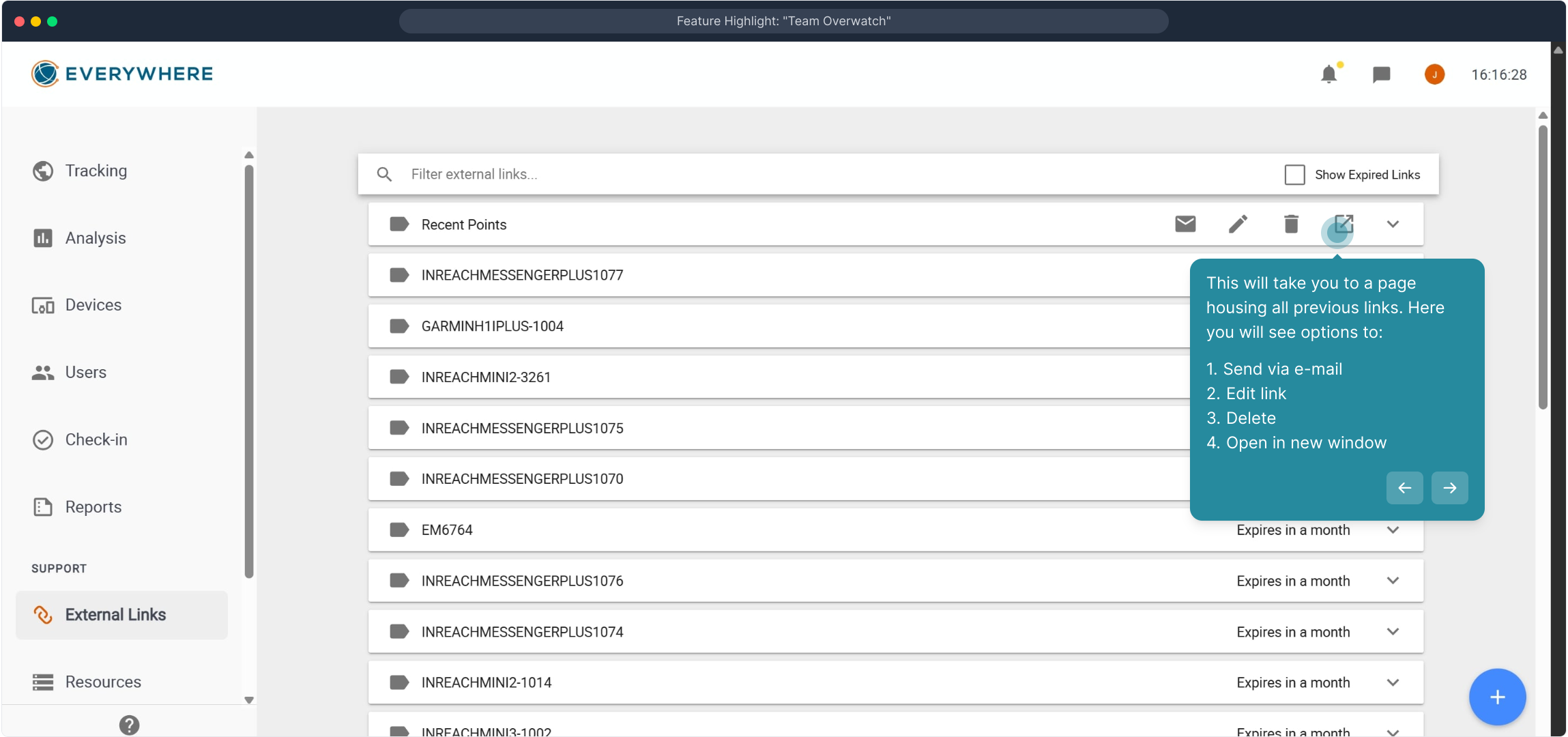
10. This will take you to a page housing all previous links. Here you will see options to:
- Send via e-mail
- Edit link
- Delete
- Open in new window
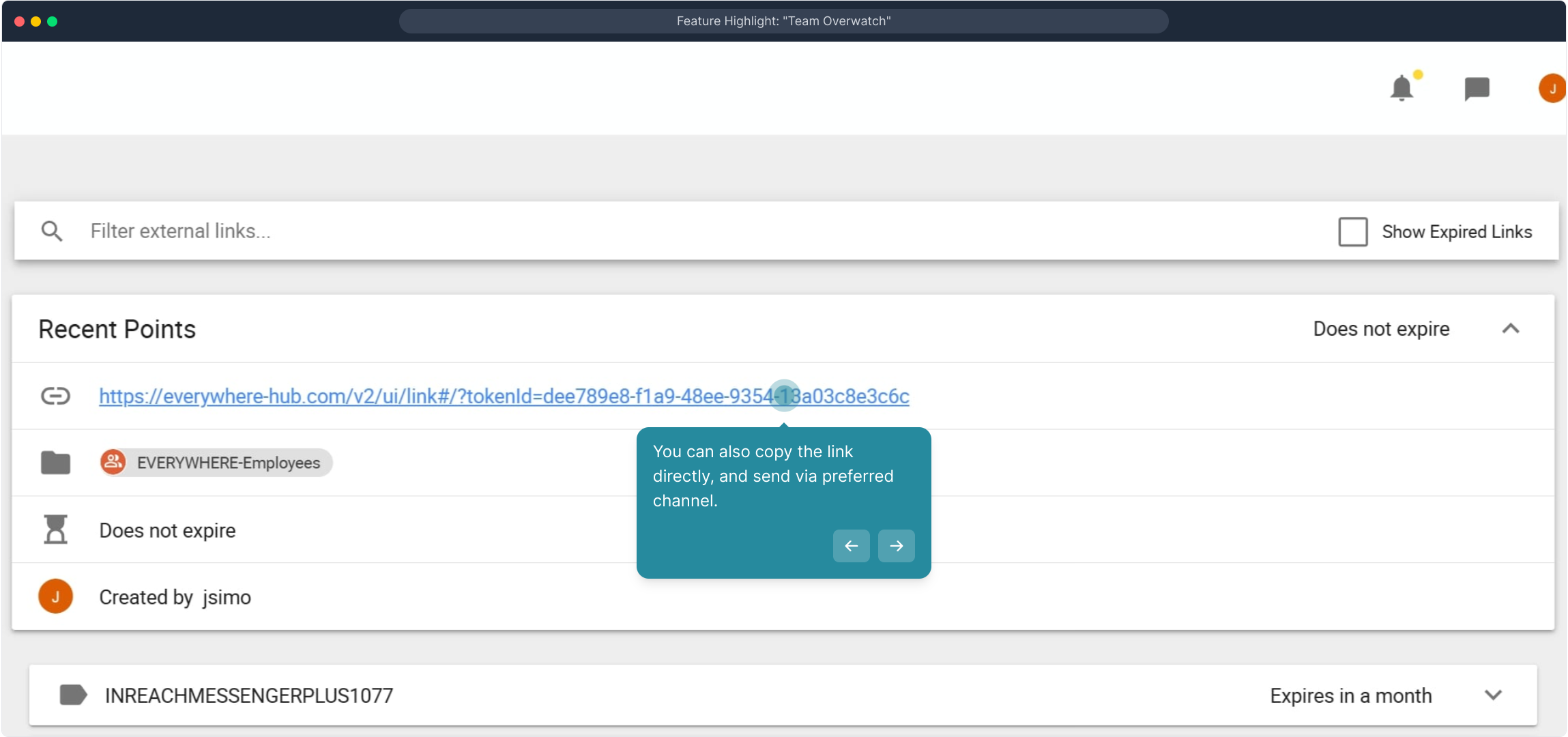
11. You can also copy the link directly, and send via preferred channel.
Video Walkthrough: Feature Highlight: "Team Overwatch"