
Before You Start
Make sure:
-
You have access to the Everywhere Hub
-
You have permission to manage devices. If you don't see the device in question reach out to support@everywherecomms.com to adjust permissions.
-
The device is active and assigned to your account
Step 1: Log In to the Everywhere Hub
-
Go to www.everywhere-hub.com and sign in using your username and password.
Step 2: Open the Devices Page
-
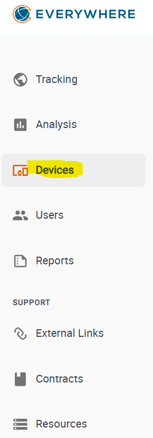
From the main menu, select Devices.
Step 3: Select the Device
-
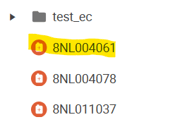
Locate the device you want to update and click the device name to open the device details page.
Step 4: Edit Device Settings
-
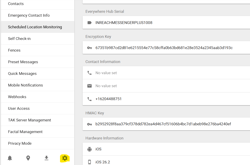
On the device details page, find the Settings at the bottom.
Step 5: Enter Your Email Address
-
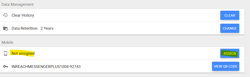
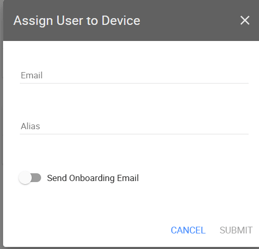
Click Assign and enter in the email address you want to assign to the device.
-
Double-check for spelling or formatting errors.
-
Re-Assign Device Alias.
Step 6: Save Changes
-
Click Save or Update to confirm.
-
The email address is now linked to the device.