
Before You Start
Make sure:
- You have access to the EVERYWHERE Hub
- You have permission to view tracking for the devices you want to export
- The devices have reported at least one location, so there is data to pull
Step 1: Open the Tracking Page
- Sign in at www.everywhere-hub.com.
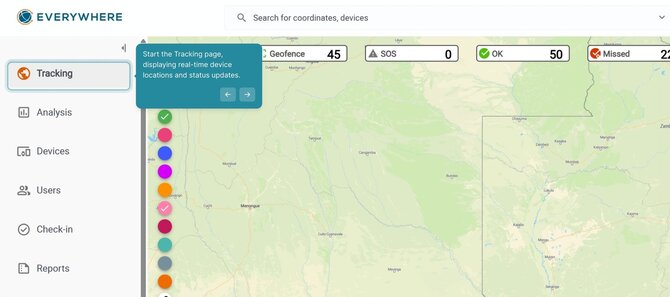
- From the left menu, select Tracking. The world map opens with your device counts across the top.
Step 2: Open the Layer Manager
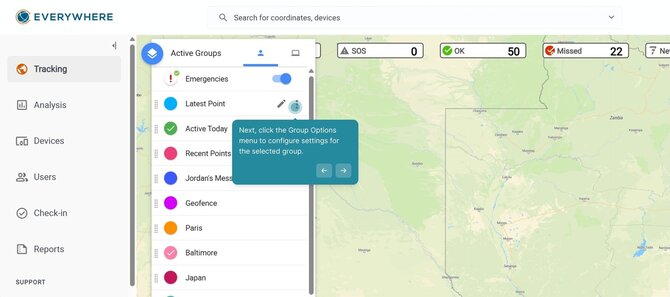
- Click the Layer Manager button. It is the blue stacked-layers icon in the top left corner of the map.
- The Active Groups panel opens and lists your map layers, including Emergencies and Latest Points.
Step 3: Turn On the Latest Points Layer
- Click the dot next to Latest Points so it shows a blue check mark.
- The most recent reported location for each device now appears on the map. This is the data set you are about to export.
Step 4: Open Group Options
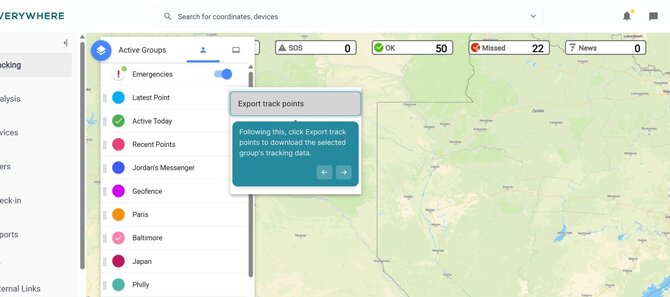
- Hover over the Latest Points row and click the Group Options button, shown as three vertical dots.
- A short menu opens with the display, filter, and export choices for that layer.
Step 5: Select Export Track Points
- Click Export track points.
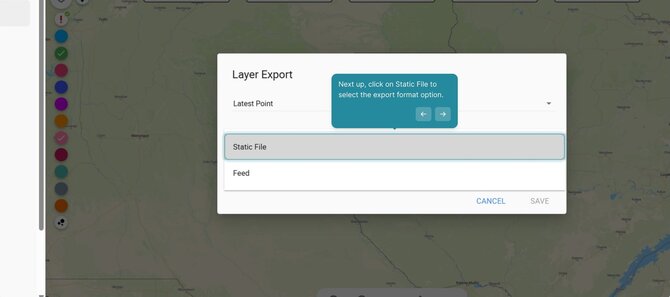
- The Layer Export window opens with the layer name, Latest Points, already filled in at the top.
Step 6: Choose the Export Type
- Click the Select Export Type dropdown.
- Select Static File. This gives you a one-time download of the points as they look right now.
Step 7: Choose the File Format
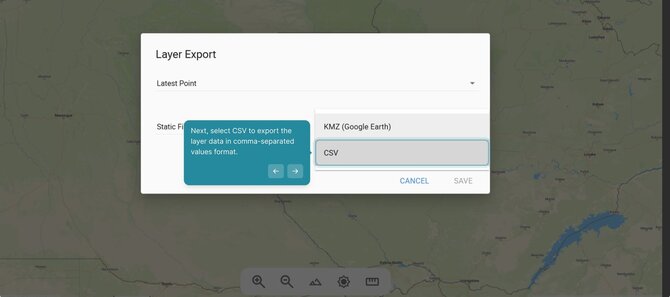
- Click the Select Format dropdown. You have two choices: KMZ (Google Earth) and CSV.
- Click CSV if you want to open the data in Excel, Google Sheets, or another spreadsheet tool.
- Click KMZ (Google Earth) if you want to view the points on a 3D map in Google Earth.
Step 8: Save the File
- Click Save.
- The file downloads through your browser. Check your Downloads folder if you do not see it right away.
Which Format Should You Pick?
| Format | Best for | Opens in |
|---|---|---|
| CSV | Reports, audits, timesheets, and anything you plan to sort or filter | Excel, Google Sheets, Numbers |
| KMZ | Visual briefings and after-action reviews where you want to see the terrain | Google Earth and most GIS tools |
Good to Know
- The export pulls the layer you selected. If you want a smaller set of devices, filter the layer first, then export.
- Exported location data can identify where your people were and when. Handle it the same way you handle any other sensitive personnel record.
- If the download does not start, check that your browser is not blocking pop-ups or downloads from the Hub.
Still stuck? Contact Support and we will walk through it with you.