
Before you start:
- You need access to the Everywhere Hub.
- You must have admin permissions to import geofences.
-
You can upload geofences in these formats:
-
KML (Keyhole Markup Language)
- Commonly used for mapping applications.
- Works well for complex shapes and multiple zones.
-
KMZ (Compressed KML)
- A zipped version of KML.
- Useful for large files or multiple geofences.
-
CSV (Comma-Separated Values)
- Must include latitude and longitude points.
- Each row represents a point in the geofence.
-
Step 1: Select the Device
-
Log in to the Everywhere Hub
- Go to your Hub login page and enter your username and password.
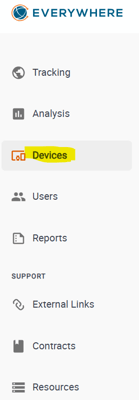
- From the main menu, select Devices.
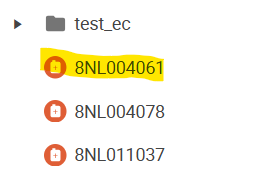
Step 2: Select the Device
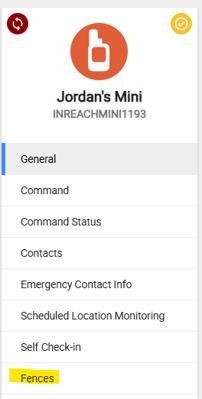
Step 3: Go to "Fences"
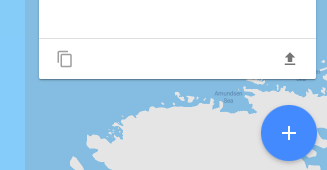
Step 4: Click the "Import" Icon.
- Click the "Up Arrow" icon pictured below.
Step 5: Name Your Geofence
Step 6 (Optional): Set-up External Geofence Alerts
- Send Geofence notifications to your cell phone, WhatsApp, E-Mail or Teams!
Step 7: Save to Finish
-
- Click Save to finish