
Self check-ins let a user confirm their own status and location from the field. They are useful when team members need to send a quick "I'm okay" message on their own schedule, without waiting on a scheduled check-in from a dispatcher or admin.
| I manage a team in the Hub Go to Part 1: Hub Setup → |
I am in the field Go to Part 2: Send a Self Check-in → |
Self Check-ins vs. Scheduled Check-ins
| Self Check-in | Scheduled Check-in | |
|---|---|---|
| Who starts it | The field user | A Hub admin |
| Best for | Workers whose day changes often | Teams on a fixed schedule |
| Can an admin edit it? | No | Yes, if they created it |
Check-in: Configuration (Admins)
Your job is to make sure self check-ins are turned on for the right devices, that the right people get alerts, and that you know where to watch for them.
Step 1: Turn on self check-ins for the device or team
1. Log in to the EVERYWHERE Hub.
2 From the left hand menu select Devices
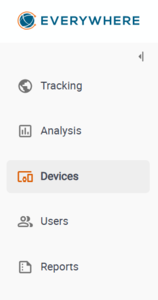
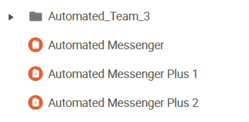
3. Select either the Team folder or the individual device you would like to apply the changes to.
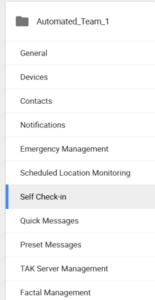
4. From menu on the left hand side, select the Self Check-in option.
.
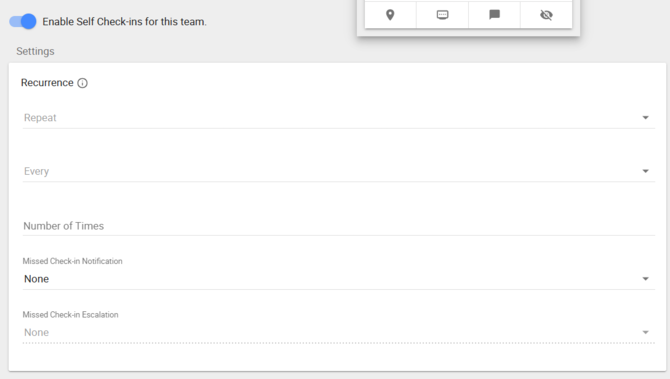
5. Finally, toggle on Enable Self Check-ins. Setup reccurrance and escaltion and make sure to hit Save.
Step 2: Choose who gets alerted
Set up notifications so the right people hear about check-in events, like a missed or escalated check-in. You can send these alerts by SMS, email, automated voice call, WhatsApp, Microsoft Teams, Slack, or a third-party system.
Tip: Set up alerts before your team heads out. If no one is set to receive them, a missed check-in may go unnoticed until someone opens the dashboard.
Step 3: Monitor Self Check-ins on the Check-in Dashboard
1. From the Main Menu, select Check-in.
2. Look at the Self tile at the top. It counts devices with self check-ins turned on that have started one.
3.To see only self check-ins, open Filters and set Type to Self. Self check-ins show a 🏔️ icon in the Type column.
4. Click a row to see the device status, location, and emergency contact
Note: Admins cannot edit a self check-in from the dashboard. The field user controls it. For full dashboard details, see How to Use the Check-in Dashboard.
Check-in: Initiation (Field Users)
You can send a self check-in from the EVERYWHERE App or right from your inReach. Use the app if your phone is paired. Use the inReach if it is not.
Option A: Send from the EVERYWHERE App
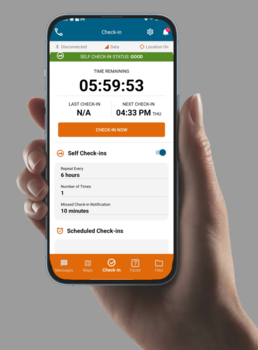
1. Open the EVERYWHERE App. Make sure your phone is paired with your inReach and you have a clear view of the sky or a strong data signal.
2. Tap Check-in. It is the middle icon at the bottom of the screen.
3. Turn on the Self Check-in toggle.
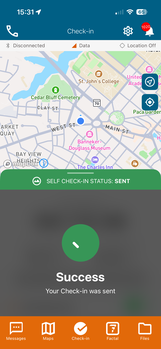
4. Wait at least one minute. When it sends, you will see a green checkmark.
🚨 Important: Keep the app open while the check-in sends. Closing it will stop the send. The app may take a minute or more to confirm, depending on your signal. That is normal and does not mean the app is frozen.
Have a Garmin watch? If your watch is paired with the EVERYWHERE App, you can reply to your self check-ins from your wrist. See Using EVERYWHERE with the Garmin Watch.
Option B: Send from your inReach (no app needed)
1. On your inReach, go to Preset Messages.
2. Select Preset Message 1.
3. Confirm to send. This works the same as a self check-in sent from the app.
[PHOTO: EVERYWHERE-owned screenshot of the inReach Preset Messages screen]
How to confirm it went through
In the app: Look for the green checkmark.
On your inReach (only if paired with the app):
1. Go to Messages.
2. Open Outgoing inReach Messages and find your check-in.
3. If it says queued or sending, it is on its way. Once it sends, your admin will see it in the Hub.
Tips for a smooth send:
- Move to an open area with a clear view of the sky.
- Give the device one to two minutes to find satellites.
- In thick trees or a canyon, the preset message on the inReach is often the most reliable choice.
FAQs
I'm an admin. Can I start a self check-in for someone?
No. Only the field user can start one. If you need check-ins on a set schedule, create a scheduled check-in instead.
I'm an admin. Why can't I edit a self check-in?
Self check-ins belong to the field user, so they can't be edited from the dashboard.
The app hasn't confirmed my check-in. Is it frozen?
No. It can take a minute or longer with a weak signal. Keep the app open and check your outgoing inReach messages.
Can I send a self check-in without the app?
Yes. Send Preset Message 1 from your inReach.