
Every Garmin device on the EVERYWHERE platform comes with a companion app that widens the functionality of the device. For instructions on how to download this companion app please see this article.
There are two steps to pair your inReach Device to your EVERYWHERE App. The first step is to prepare your Garmin inReach device to be paired and the second step is to finish pairing with the companion app on your cellular phone.
Note: A Garmin inReach can only be paired to one Mobile App at a time, it is imperative that you DO NOT INSTALL THE GARMIN MESSENGER APP or you will not be able to use the EVERYWHERE App and platform.
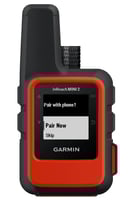
On the inReach:
1. Select OK > Settings > Pair > Phone
2. A message displays on inReach: To get started, download the Garmin Messenger app. Ignore this message and DO NOT download the Garmin Messenger app.
3. Continue with the directions below
Pair from Bluetooth
When you open your EVERYWHERE App for the first time, you will be prompted with important permissions settings along with a Configure Device dialog.
From the Settings gear in the top right corner:
-
Select Bluetooth Pairing and Status
-
inReach Mini 2 displays "Disonnected"
-
Tap on inReach Mini 2
-
Code will display device
-
Enter the code and select Pair
-
Mini 2 is now paired with the EVERYWHWRE App
*A message will display on inReach: To get started, download the Garmin Messenger app
Ignore this message and DO NOT download the Garmin Messenger app.
*Not working? Try forgetting the inReach device off your bluetooth settings and start over.